Scanning Cards
OSS CardWallet makes it easy to digitize your physical cards by scanning their barcodes.
Using the Camera
- Tap the + button to add a new card
- Select Add From Camera
Barcode
Barcodes will be directly detected with the card itself
Auto Capture
The default capture mode uses intelligent edge detection to automatically capture documents when:
- The document is properly positioned within the viewfinder
- All four edges are detected
- The image is stable (no motion blur)
How to enable Auto Capture:
The first time you open the capture screen you'll be prompted to enable or disable Auto Capture. After that you can enable or disable it by long pressing the capture button
How to use Auto Capture:
- Hold your device steady above the document
- Wait for the green frame to appear around the document edges
- The app will automatically capture when conditions are optimal
Manual Capture
For situations where auto-capture doesn't work well (glossy surfaces, low contrast) you can simply use the capture button
Batch Scanning
Batch scanning allows you to scan multiple pages into a single document:
- Enable batch scanning with the button left of the capture button
- Start capturing pages as normal
- Each captured page is added to the current batch
- Review all pages in the batch preview
- Tap Done when finished to create the document
Auto Edge Detection
The app uses advanced computer vision (OpenCV) to detect document edges:
How It Works
- The camera feed is analyzed in real-time
- Contours are detected in the image
- Quadrilateral shapes are identified as potential documents
- The largest valid quadrilateral is selected as the document boundary
Tips for Better Detection
- Good lighting: Ensure even lighting without harsh shadows
- Contrast: Place documents on contrasting backgrounds
- Flat surface: Keep documents flat to avoid warped edges
- Clean lens: Wipe your camera lens for clear captures
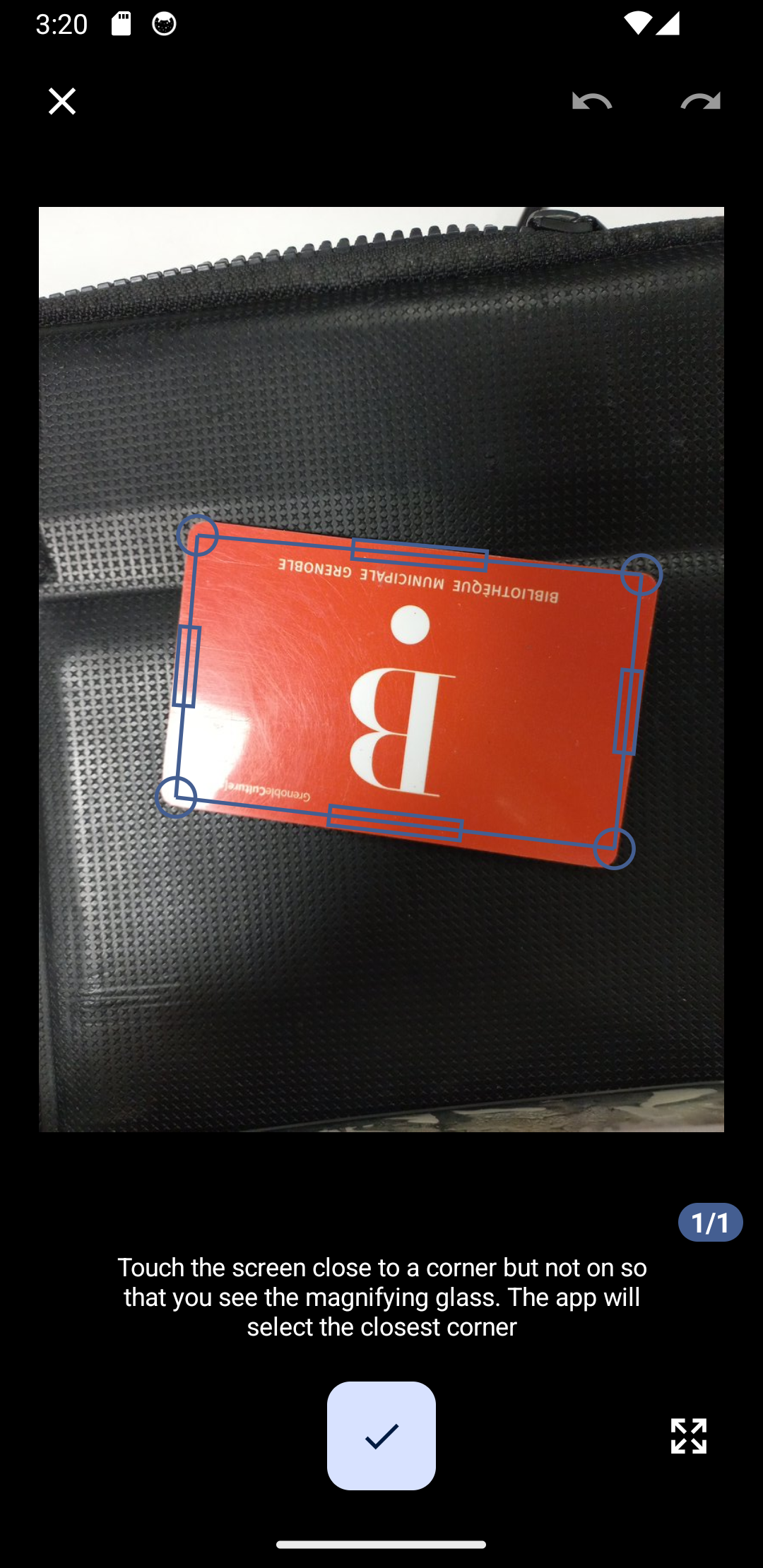
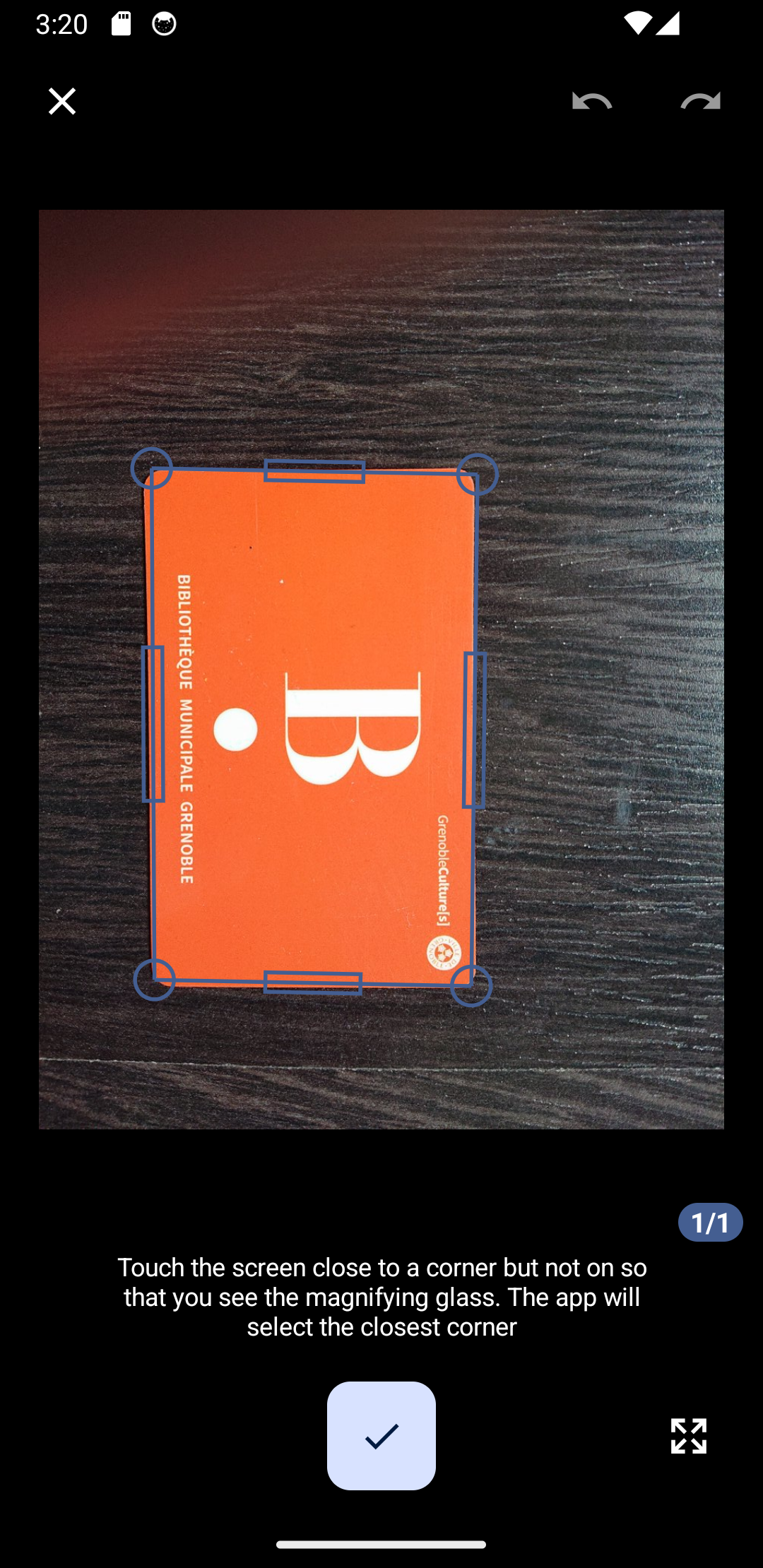
Manual Adjustment
If auto-detection doesn't perfectly identify edges:
- After capture, the edge adjustment screen appears
- Drag the corner handles to adjust the document boundaries
- Drag edge midpoints for fine adjustments
- Tap Done to apply the selection
Camera Settings
Access camera settings by tapping the gear icon in the capture view:
Resolution (android)
On android you can select the camera resolution based on your needs.
Flash Control
- Auto: Flash fires when needed in low light
- On: Flash always fires
- Off: Flash disabled
Torch mode
You can use this to enable torch mode instead of Flash Control
Focus Mode
- Auto Focus: Tap to focus on specific areas
- Continuous: Camera continuously adjusts focus
Transformations
There you can select default brightness, contrast, fitlers... to apply to scanned documents
Document edges not detected
- Ensure good lighting conditions
- Use a contrasting background
- Try manual capture mode
- Clean your camera lens
Blurry captures
- Hold the device steady
- Wait for auto-focus to complete
- Ensure adequate lighting
- Try manual focus by tapping the screen
Auto-capture too sensitive/slow
- Adjust auto-capture sensitivity in settings
- Switch to manual capture for difficult documents
Manual Entry
If scanning doesn't work, you can enter barcode data manually:
- Tap the + button
- Select Create
- Choose the barcode format
- Enter the barcode number
- Add card details and save
Supported Barcode Formats
1D Barcodes (Linear)
| Format | Common Use |
|---|---|
| CODE_128 | General purpose, shipping |
| CODE_39 | Industrial, automotive |
| EAN_13 | Retail products (Europe) |
| EAN_8 | Small retail products |
| UPC_A | Retail products (North America) |
| UPC_E | Small packages |
| ITF | Shipping, logistics |
| CODABAR | Libraries, blood banks |
2D Barcodes
| Format | Common Use |
|---|---|
| QR_CODE | URLs, loyalty cards, tickets |
| DATA_MATRIX | Electronics, small items |
| AZTEC | Tickets, boarding passes |
| PDF_417 | IDs, driver's licenses |
Scanning from Images
You can also scan barcodes from existing images:
- Tap the + button
- Select Import from Image or Import from File
- Choose an image/file
- The app will detect and extract the card and any barcode