Sync and Backup
Keep your documents safe and accessible across devices with OSS Document Scanner's sync and backup features.
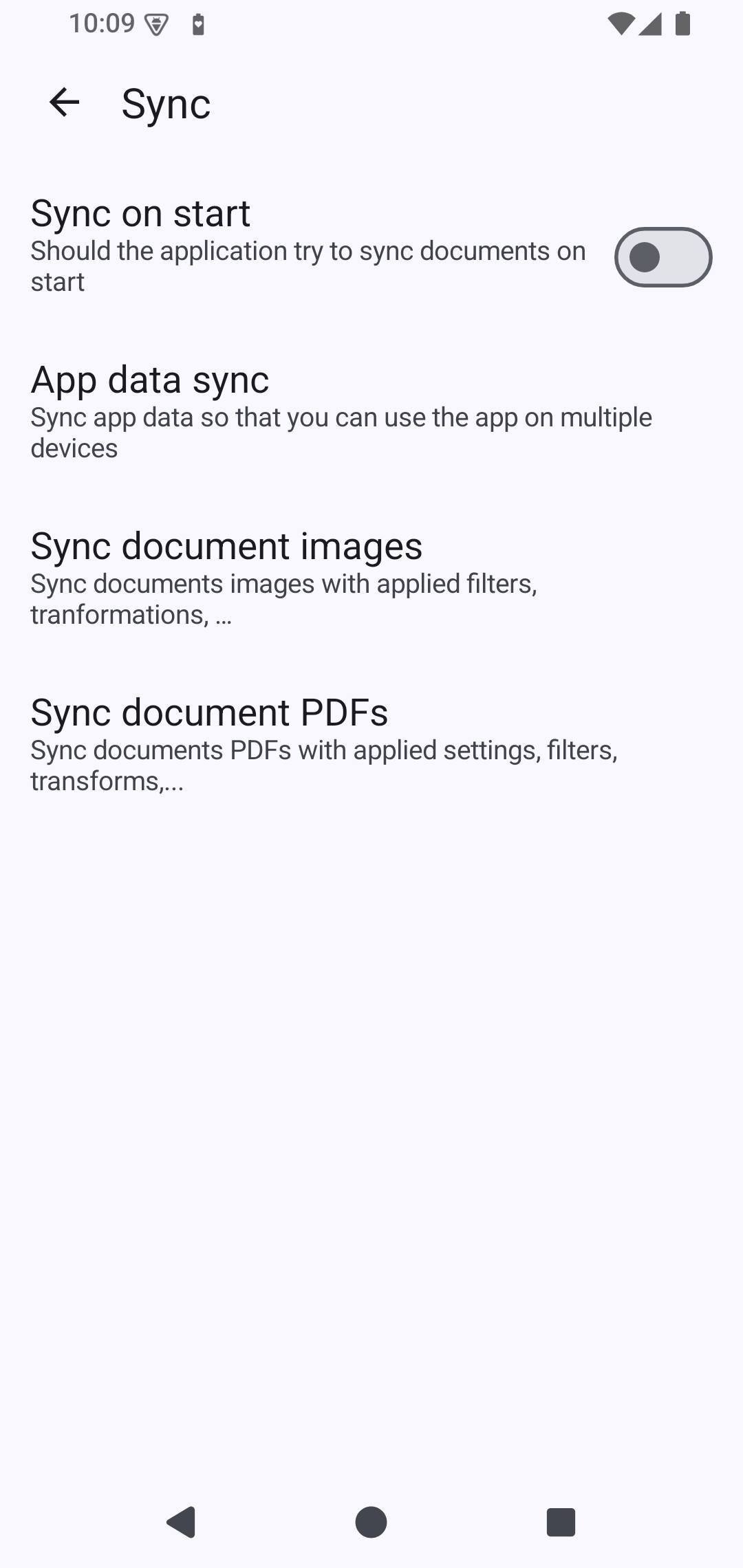
Sync Options
WebDAV Sync
Connect to any WebDAV-compatible server:
Supported Services
- Nextcloud
- ownCloud
- Synology NAS
- QNAP NAS
- Any WebDAV server
Setup WebDAV
- Go to Settings > Sync
- Select WebDAV
- Enter your server details:
- Server URL: Your WebDAV endpoint
- Username: Your account username
- Password: Your account password
- Tap Test Connection
- Select sync folder
- Enable sync
WebDAV Configuration
| Setting | Description |
|---|---|
| Server URL | Full WebDAV URL (e.g., https://cloud.example.com/remote.php/webdav/) |
| Username | Account username |
| Password | Account password or app token |
| Sync Folder | Remote folder for documents |
Local Backup
Create backups on device storage:
- Go to Settings > Backup
- Select Create Backup
- Choose backup location
- Backup is created as ZIP archive
Restore from Backup
- Go to Settings > Backup
- Select Restore Backup
- Choose backup file
- Confirm restore (existing documents may be overwritten)
Sync Behavior
Automatic Sync
When enabled, documents sync automatically:
- On document creation
- On document modification
- On app launch (configurable)
- Periodically in background (if permitted)
Manual Sync
Trigger sync manually:
- On the main view use the Sync button
Conflict Handling
When the same document is modified on multiple devices:
Automatic Resolution
The app attempts to resolve conflicts automatically:
- Compare modification timestamps
- Most recent change wins
- Older version may be archived
Preventing Conflicts
- Sync frequently
- Avoid editing same document on multiple devices simultaneously
- Use different folders for different devices
Cloud Storage Setup
Nextcloud
- Log into your Nextcloud instance
- Go to Settings > Security > Devices & sessions
- Create an app password for OSS Document Scanner
- In the app, enter:
- URL:
https://your-nextcloud.com/remote.php/webdav/ - Use app password instead of main password
- URL:
Synology NAS
- Enable WebDAV Server package on your NAS
- Configure HTTPS (recommended)
- In the app, enter:
- URL:
https://your-nas-ip:5006/(or custom port) - Use your Synology account credentials
- URL:
Generic WebDAV
- Ensure WebDAV is enabled on your server
- Note the WebDAV endpoint URL
- Create credentials if needed
- Test connection in app settings
Backup Best Practices
Regular Backups
- Schedule regular local backups
- Store backups in multiple locations
- Test restore process periodically
What's Included
Backups contain:
- All scanned documents (images)
- Document metadata
- Folder structure
- OCR data (optional)
What's NOT Included
- App settings (use the export settings action)
- Cache files
- Temporary files
- Sync credentials (for security)
Data Security
Encryption
- Credentials are stored securely using platform keychain
- Data in transit uses HTTPS (when configured)
- Local storage uses device encryption
Privacy
- No data sent to third parties
- Sync only to servers you configure
- All processing happens on-device
Troubleshooting
Connection Failed
- Verify server URL is correct
- Check username and password
- Ensure server is accessible
- Try disabling VPN if active
- Check firewall settings
Sync Not Starting
- Check internet connection
- Verify sync is enabled
- Check background app restrictions
- Review battery optimization settings
Conflicts Keep Occurring
- Sync more frequently
- Check device clocks are correct
- Avoid simultaneous edits
- Use upload-only mode on secondary devices
Backup Restore Issues
- Ensure backup file is not corrupted
- Check available storage space
- Try restoring to a fresh install
- Verify backup was created successfully